In this article15 sections
- Introduction
- 1. Customize Quick Settings for Faster Access
- 2. Extend Battery Life With Simple Adjustments
- 3. Use App Permissions to Protect Your Privacy
- 4. Enable Find My Device
- 5. Use Do Not Disturb to Reduce Distractions
- 6. Make Text Easier to Read
- 7. Use Split Screen for Multitasking
- 8. Share Your Internet Connection With Hotspot
- 9. Find Apps and Settings Faster
- 10. Free Up Storage Without Deleting Important Files
- 11. Keep Android and Apps Updated
- 12. Strengthen Your Phone’s Security
- Bonus: Create a Simple Android Maintenance Routine
- Conclusion
Introduction
Android smartphones offer many useful features that can make everyday tasks easier, improve privacy, save battery power, and help you stay organized. However, many users rely only on basic functions such as calling, messaging, browsing, and using social media.
Whether you use an Android phone for work, study, entertainment, or daily communication, learning a few practical tips can help you get more from your device.
In this guide, we cover 12 useful Android tips and tricks that you can try on your smartphone. Menu names and feature availability may vary depending on your phone brand, Android version, and region.
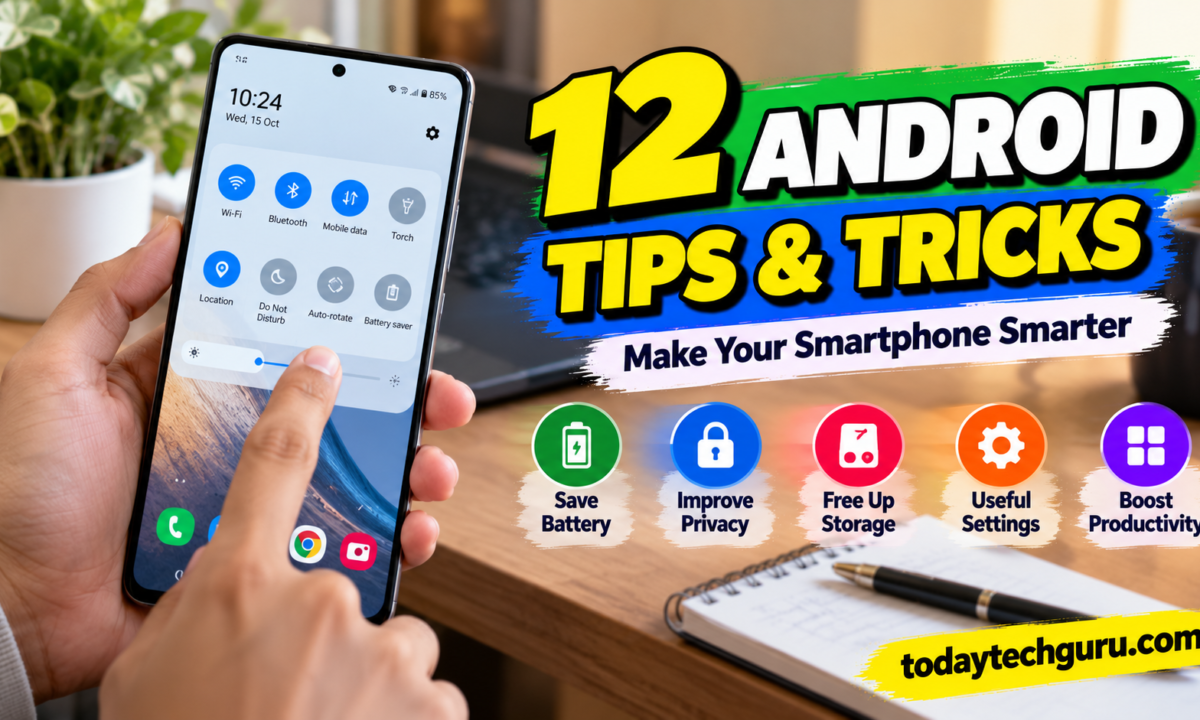
1. Customize Quick Settings for Faster Access
Quick Settings lets you access commonly used functions without opening the full Settings app.
Depending on your device, you may be able to quickly control Wi-Fi, Bluetooth, mobile data, airplane mode, screen recording, hotspot, battery saver, and other features.
How to use it:
- Swipe down from the top of your screen.
- Swipe down again if needed to expand the panel.
- Tap the edit or pencil icon if available.
- Move your most-used controls into an easy-to-reach position.
Place frequently used features near the beginning so you can access them quickly.
2. Extend Battery Life With Simple Adjustments
If your Android phone runs out of battery before the end of the day, review its battery settings before installing third-party battery-saving apps.
Try these steps:
- Reduce screen brightness when possible.
- Set a shorter screen timeout.
- Enable Battery Saver when needed.
- Check which apps use the most battery.
- Restrict unnecessary background activity.
- Avoid exposing your phone to excessive heat.
You can usually find battery usage details in Settings under Battery or a similarly named menu.
Remember that battery drain may also be caused by an aging battery, poor network reception, or a specific app behaving unexpectedly.
3. Use App Permissions to Protect Your Privacy
Some applications request access to your location, microphone, camera, contacts, and photographs. Certain permissions are necessary for an app to work, but others may not be needed for its main purpose.
Review app permissions regularly.
Steps to follow:
- Open Settings.
- Find Privacy or Permission Manager.
- Choose a permission category, such as Location or Microphone.
- Review which applications have access.
- Change permissions that are unnecessary.
Where available, allow location access only while using an app. Review photo and video access options if your Android version supports limited media permissions.
Do not remove permissions that are genuinely needed for a feature you use, but avoid granting access without a clear reason.
4. Enable Find My Device
Losing a smartphone can expose personal photographs, messages, accounts, and other important information. Android offers device-finding and security features that may help you locate or protect a missing phone.
Check that Google’s device-finding service is enabled, that your device is associated with the correct account, and that the relevant location and connectivity requirements are met.
Depending on the device and configuration, you may be able to locate it, make it ring, secure it, or erase its data remotely.
Important: Remote actions have requirements and limitations. Review the official settings before you need them, and secure your Google account with a strong password and available multifactor authentication.
5. Use Do Not Disturb to Reduce Distractions
Frequent notifications can interrupt work, studying, meetings, and rest. Android’s Do Not Disturb feature can silence selected notifications while allowing important calls or alerts, depending on your settings.
To configure it:
- Open Settings and find Notifications or Sound.
- Select Do Not Disturb.
- Choose which people, apps, or alarms can interrupt you.
- Set a schedule if your phone supports it.
You can create a routine for study sessions, meetings, or bedtime. Check the settings carefully so that important alerts are not unintentionally blocked.
6. Make Text Easier to Read
If text appears too small or difficult to read, Android provides display and accessibility options on many devices.
Look for settings such as:
- Font size.
- Display size.
- Magnification.
- High contrast or color correction.
- Dark theme.
- Reading or accessibility features supported by your phone.
Adjust one setting at a time until the screen is comfortable to use. Larger text may change how much information fits on the display, so choose a balance that works for you.
7. Use Split Screen for Multitasking
Some Android phones support split-screen multitasking, allowing two compatible applications to appear on the screen at the same time.
This can be helpful when reading notes while attending an online class, comparing information, or referring to a document while writing a message.
Open the recent-apps screen, select the application menu if available, and choose the split-screen option. Then select the second app.
The exact steps vary by manufacturer, and not every application supports this mode. On smaller screens, using one app at a time may be more comfortable.
8. Share Your Internet Connection With Hotspot
A mobile hotspot lets compatible devices connect to your phone’s mobile internet connection. It can be useful when you need internet access on a laptop or tablet away from Wi-Fi.
To use it:
- Open Settings.
- Find Hotspot or Tethering.
- Enable the Wi-Fi hotspot.
- Check the network name and password.
- Connect your other device.
Use a strong hotspot password and disable the hotspot when you no longer need it. Keep an eye on mobile data usage because connected devices may download large files or updates automatically.
Hotspot use can also increase battery consumption and heat.
9. Find Apps and Settings Faster
Searching through long menus takes time. Many Android devices include a search box in Settings, while the app drawer may also provide app search.
Instead of browsing through every menu, type a term such as “battery,” “permissions,” “storage,” or “notifications” into the relevant search box.
This is especially helpful when the location of a setting changes after a software update or differs between phone brands.
10. Free Up Storage Without Deleting Important Files
When your phone runs low on storage, you may have difficulty installing updates, downloading files, or recording videos.
Start by checking the storage section in Settings. Review large files, downloaded videos, duplicate media, and applications you no longer use.
Useful steps include:
- Uninstalling apps you do not need.
- Removing downloads after checking their contents.
- Moving important photographs to a trusted backup location.
- Clearing an app’s cache when appropriate.
- Using the storage-management tools provided by your phone.
Be careful when deleting files or clearing app data. Clearing data may remove saved settings, offline content, or local information. Confirm that important files are backed up before removing them.
11. Keep Android and Apps Updated
Software updates can provide security fixes, bug corrections, compatibility improvements, and new features.
To check for updates, open Settings and look for System Update or Software Update. The exact location depends on your phone.
Also update apps through the official app store and remove applications you no longer use.
Updates do not guarantee that every issue will be fixed, and the availability of newer Android versions depends on your phone model and manufacturer support policy.
12. Strengthen Your Phone’s Security
Your smartphone may contain access to email, social media, financial services, photographs, and personal conversations. Protecting it should be part of your regular device routine.
Follow these security practices:
- Use a strong screen lock.
- Enable fingerprint or face unlocking if supported and appropriate.
- Keep your operating system and applications updated.
- Download apps from trusted sources.
- Review app permissions.
- Enable available account security protections.
- Avoid sharing verification codes or passwords.
- Be cautious of unexpected links and attachments.
Biometric unlocking is convenient, but keep your backup screen-lock method secure as well.
Bonus: Create a Simple Android Maintenance Routine
You do not need to change every setting every day. A short monthly check can help you identify problems before they become frustrating.
Review battery usage, storage space, app permissions, available updates, account security, and device-finding settings. Remove apps you no longer need and confirm that important photographs and files are backed up.
If your phone suddenly becomes slow, overheats, or drains battery unusually quickly, investigate the cause rather than immediately installing an unfamiliar optimization app.
Conclusion
Android phones include many features that can improve convenience, privacy, productivity, and everyday security. Customizing Quick Settings, managing app permissions, enabling device-finding features, reviewing storage, and keeping software updated are useful places to start.
Try the tips that match your needs, because available features differ across Android versions and manufacturers. With a few thoughtful adjustments, you can make your smartphone easier and safer to use without installing unnecessary applications.